Thoughts on Technology

  • Subscribe to our RSS feed.
  • Twitter
  • StumbleUpon
  • Reddit
  • Facebook
  • Digg
Showing posts with label arm. Show all posts

Friday, 31 May 2013

Dated Hardware, Waiting for Hardware and the Nokia N900 in 2013

Posted on 08:38 by Unknown
The Nokia N900 was released in November of 2009 - three and a half years ago. When I bought my first N900 in January of 2010 it was a huge upgrade for me in terms of both speed and software freedom (coming from a Blackberry). The idea of having a computer - a true computer - that was also a phone was amazing. The same device I used to send text messages, I also installed applications on using apt-get. True multitasking - my applications stayed open until I closed them, not until the operating system decided it wanted to kill them. I didn't mind paying the 450 USD it cost to purchase the brand new N900 out of contract - this was an awesome piece of technology!

Fast forward to 2013. Three years later I have gone through 2.5 Nokia N900s (I say 2.5, because the first two each broke in different ways and I was able to build a working device from their left overs) and still have it sitting on my desk as I write this. Three years is a long time in the world of mobile hardware and the N900 easily shows plenty of signs of aging. Compared to my wife's Nexus 4, it loads applications and web sites slowly.

So why is it I hold onto hardware/software that deserves an upgrade? Simple - no one has released a comparable replacement. At first I did not want to trade my true Linux operating system in for this dribble called Android everyone raves about. Upon giving Android a chance though - I could make do with it. The HTML5 supporting browsers on Andriod really provide a decent web experience (which beyond text messaging is what I mainly do on a mobile device).

The hold up then? The hardware. I'm not talking about the speed of the hardware though - I'm talking about the lack of design. Almost every modern mobile that is sold today is a pure touch device. Hardware keyboards are a thing of the past it seems.

Am I truly the last person left alive who doesn't like a software keyboard taking up half of my sub-10 inch screen while I type something?

When I search for modern cell phone hardware I certainly feel that way.

I have hope though! Within the next year we are expecting at least three new mobile operating systems to enter the landscape:
  • Ubuntu Mobile
  • Tizen
  • Firefox Mobile
I hope against all open that one of the hardware makers supporting these operating system breaks the current tread of touch-only devices. Maybe then I and stop picking up old N900s on Ebay when my existing one breaks!

~Jeff Hoogland
Read More
Posted in arm, hardware, rant | No comments

Monday, 13 May 2013

Samsung ARM Chromebook Review

Posted on 14:38 by Unknown
The Samsung ARM Chromebook is one of a few ARM devices that I prepare Bodhi Linux images for. As such I've owned the hardware for almost six months now and during this time I've used it a fair amount. The goal of this post is to provide a comprehensive review of the product to see if it is something that could be useful to you.

Cost - 
Lets start with one of the first draws - the price point. The Chromebook comes in at under 300 USD. 250 USD plus shipping and handling to be exact.

Performance -
In terms of speed the Chromebook processor is snappy compared to other netbook offerings and ARM chipsets in general. The Chromebook sports the Samsung Exynos 5 1.7ghz dual core processor and 2gigs of DDR3 RAM. This coupled with the 16GB solid state hard drive allow the Chromebook to boot fully from a cold start in just a few seconds.

Under Chrome OS the Chromebook happily plays a variety of multimedia formats. Including 720p video files, 1080 flash streams, and Netflix.

Connections - 
In terms of "ports" the Chromebook sports two USB (one 3.0 and one 2.0), an SDHC card slot, HDMI video output, and a combination audio input/output jack. While all these ports are plenty functional I do have a few comments about them.

First - both USB ports, the HDMI and the power plug are all right next to each other on the back of the netbook. This means if you have all these ports in use at the same time space gets kind of tight (it also means if you have a clunky USB device it is going to block other ports).

Second - because the Chromebook has such little storage by default, it can be nice to use a SD card as extra space. Sadly, unlike most netbooks - when you insert a SD card into the Chromebook it does not go completely inside of the netbook. Meaning if you leave an SD card in the slot while transporting the netbook it is likely to get damaged.

Finally - maybe this one is just me, but I dislike not having traditional two ports for audio input/output. My traditional headsets do not work when using a Google hangout with this netbook.

Size & Feel - 
The Chromebook has an awesome form factor. Weighing in at just under 2.5 pound (about 1.1 KG) and having dimensions of 289.6 x 208.5 x 16.8 - 17.5 mm it is a sleek little device.

Personally I like Chicklet keyboards on laptops and the Chromebook keyboard is no exception for me. The keyboard layout on the Chromebook is one that is best described with an image though:


As you can see there is no super (or "Windows") modifier key, Capslock has been left off in favor of a "search" button, and while the top row of buttons may not read F1-F10 - under non-ChromeOS operating systems they return these values.

One design choice I found slightly odd with the Chromebook is that even though the hardware supports a "right" click function, all context menus within Chrome OS are called up with a two finger touch ("right" clicking in Chrome OS is no different than any other single finger touch).

Battery & Screen - 
The battery life on the Chromebook is one of the largest draws I think. It is easily one of the lightest pieces of hardware with a lengthy battery life. Through average web use the Chromebook sees just shy of seven hours of usage before you need to find an outlet.

While the screen resolution could be better, the Chromebook's 1366x768 screen resolution at least enables you to watch 720p video in their native quality.

Misc Thoughts -
I have had some trouble using the HDMI output on the Chromebook - the graphics drivers on Chrome OS seem to be fairly buggy. I've experience full system lock ups when attaching an external screen while the OS is running - but this does not happen every time and I cannot reproduce it consistently.

One that keeps me from using the Chromebook as my primary mobile computer over my old trusty Asus T101MT is that Dropbox does not create their software for ChromeOS or generic ARM Linux devices to date. I store a lot of data on this service and accessing it all via a web portal instead of having it sync to the system's local drive is very annoying. If you are open to using Google drive this is a non-issue, but I haven't had the time to make this jump as of yet.

Closing -
Who would I recommend the Chromebook to? Anyone who needs a device for accessing the web, but requires a keyboard to get their work done. If a large deal of your computing time is spent on Gmail, Facebook, Netflix, online shopping or Youtube then the Chromebook is the perfect device for you.

Who would I not recommend a Chromebook to? Someone that is looking to use it as their sole computer. While a lot of people use the web a lot - most people still have at least one or two desktop applications they need access to (such as my tie to drop box). Because of this Chrome OS's "web based" application eco-system currently still leaves some to be desired.

Do you own a Samsung ARM Chromebook? If so what are you thoughts on the device?

Cheers,
~Jeff Hoogland
Read More
Posted in arm, chromebook, reviews | No comments

Monday, 28 January 2013

Bodhi on MK802 and other ARM Updates

Posted on 11:06 by Unknown
MK802:

Today I am happy to announce our first public Bodhi images for the MK802 Android stick:


This image comes with a 3.0 kernel and it has OpenGL support for MK802 GPU enabled out of the box. You can find a download link for the MK802 on the ARMHF page of the Bodhi website. The default user name is armhf and the password is bodhilinux. This default user has sudo enabled for installing software and ssh is on by default.

To use this release simply DD the provided .img file to a micro SD card, insert it into your MK802 and power it up. This image has a 1080p script.bin by default, meaning if you are trying to use this image on a screen that only supports 720p resolution you will need to replace the script.bin on the first partition of the image with the one found here.

Since this is our first image for this ARM chipset I have no doubt that it will contain some rough edges. For certain the MK802's built in wireless and OpenGL are functional on this image - I haven't had time to test the audio yet though. Alpha quality release of course.

Please, please, please do not make a comment on this post asking for support with an issue you encounter with installing/running Bodhi on your MK802! Comments asking for support will be removed from this post. Instead please open a support request thread in the A10 section of our user forums. It is much easier to manage/search/solve issues in a message board format than a comments section.

Other Updates:

This past weekend I've also published image updates for our Raspberry Pi and Genesi Smartbook images. Like this image they now both include EFL 1.7.5 and E17 stable by default.

Cheers,
~Jeff Hoogland
Read More
Posted in arm, bodhi, genesi, mk802, raspberry pi | No comments

Wednesday, 9 January 2013

Nexus 7 jams with Bodhi Linux

Posted on 21:10 by Unknown
After a few weeks of working on other things I've gotten back around to doing some more work on our Bodhi for Nexus 7 image. I've just uploaded a new Bodhi rootfs.img (which can be gotten from our source forge page here). This image brings a few improvements, most notably:

  • Menu/Buttons have been made slightly larger to make things more "finger friendly"
  • Suspend now works and pressing the "power" button on the device now suspends Bodhi by default
  • Audio now works without any tweaking
  • Stable E17 packages
My TODO list for the device still includes determining why OpenGL seems to not want to work as well as creating a automated installer script for loading Bodhi on to your Nexus 7. For now this updated image can be installed following the method I laid out here. If you encounter any issues with this image please open a support request in the Nexus 7 section of our user forums.

I'm going to be busy jamming to eAndora on my Nexus for awhile:


Cheers,
~Jeff Hoogland
Read More
Posted in arm, bodhi, nexus 7 | No comments

Wednesday, 2 January 2013

Bodhi is ARMing up for a new Year

Posted on 13:08 by Unknown
The mainline Bodhi desktop repositories recently received the gift of stable E17 packages and this same present isn't far off for our ARMHF branch. In the mean time however I have prepared and shared new ARMHF images for the Raspberry PI and Samsung Chromebook.


For the Raspberry PI image, in addition to sporting the shiny new E17 packages - it now comes with the much requested WICD network manager by default. This means those of you using your Raspberry PIs with wireless devices will now have a GUI by default to configure/connect with this interface. You can find this new Raspberry PI image on our downloads page.


The Chromebook release is a bit more exciting. This image has audio working by default and the track pad functions much smoother - including two finger tap to simulate a right click. To get this latest images you follow the exact same install instructions I outlined here a couple weeks ago. For existing Bodhi-for-Chromebook users you can fix your audio by following this guide and improve the trackpad by following this one. One other thing worth noting is that the Chromebook automated installer now includes a md5sum check - so it will only complete the install if your download is valid.

I haven't forgotten about our Nexus 7 users - an update for you will be coming later this month as well.

~Jeff Hoogland
Read More
Posted in arm, bodhi, chromebook, raspberry pi | No comments

Tuesday, 18 December 2012

Bodhi ARMHF Alpha for Nexus 7

Posted on 18:17 by Unknown
Earlier this month we collected enough donations that I was able to pick up a Nexus 7 to do some development work on for Bodhi. Today I would like to share our first public images for the Nexus 7. They install, they boot up, and they are semi functional. By that I mean the touchscreen and wireless work OOTB and the interface runs smoothly on the device. I haven't had time to try and make audio work fully yet - but I have gotten some noise to come out of the speakers.

With the help of my lovely fiance I filmed the following short demo video of Bodhi running on the device:


Anywho - installing Bodhi on the Nexus 7 follows the same process as installing Ubuntu on the device. I don't have an automated installer finished just yet so you will need to install the Bodhi images using a manual install process. This can be done using the following steps:


Step 0 - Getting the Tools

Installing Bodhi on the Nexus 7 can be done from any Linux distribution so long as you have the proper android tools installed (if you are using Bodhi on your desktop the Android tools can be found in our repositories). Namely you need the fastboot command.

Step 1 - Unlocking your Nexus 7

The bootloader on the Nexus 7 needs to be unlocked to accept other operating systems. Start with your device off, then while holding the volume down button power the device on - you will soon see the bootloader screen. Attach the Nexus 7 to your computer with a micro USB cable and run the command:

sudo fastboot oem unlock

After you run this command your Nexus 7 will ask you to confirm you want to unlock the bootloader - do so. Then run:

sudo fastboot reboot-bootloader

to finish the unlocking process.

Step 2 - Get the Bodhi Files

You need to download and then extract both the tarballs found here.

Step 3 - Writing the data to the Nexus 7

Open a terminal to the directory where you extracted both the files you downloaded above. Then run the following commands in order:

sudo fastboot erase boot
sudo fastboot erase userdata
sudo fastboot flash boot boot.img
sudo fastboot flash userdata rootfs.img
sudo fastboot reboot


After you run the last command your Nexus 7 will reboot and automagically extract and install the Bodhi file system on your device (this will take a few minutes). When it is finished it will boot right into the Bodhi desktop for you.


User Information

Default username:
armhf

Default password:
bodhilinux

The default user has sudo rights.


Getting Support

Please, please, please do not make a comment on this post asking for support with an issue you encounter with installing/running Bodhi on your Nexus 7! Comments asking for support will be removed from this post. Instead please open a support request thread in the Nexus 7 section of our user forums. It is much easier to manage/search/solve issues in a message board format than a comments section.


Other Notes

I do consider this an alpha quality release. As noted above the sound still doesn't work by default and I am sure there are some other minor niggles that need to be worked out.

Cheers,
~Jeff Hoogland
Read More
Posted in arm, bodhi, howto, nexus 7 | No comments

Sunday, 16 December 2012

Bodhi ARMHF Alpha for Samsung Chromebook

Posted on 21:48 by Unknown
As I mentioned in a post last weekend, I've got my hands on the new Samsung Chromebook. The hardware in this device is simply awesome (full formal review forthcoming), but ChromeOS left me wanting a real operating system with non-cloud applications. Thankfully I've been working on Bodhi's ARM branch for awhile now and it proved fairly simple to get at least a base system up and rolling on the Chromebook (largely due to the fact that ChromeOS is Linux based).

Now, unfortunately the current install process for getting an alternative operating system to boot on the Chromebook isn't as easy as our Genesi images - but if you follow the instructions I provide below to the letter you should have Bodhi booting on your Chromebook in no time!

Please note following these steps WILL permanently delete all local data and configurations of your ChromeOS! It essentially restores the system to factory defaults.


Step 1 - Boot in Recovery Mode

Make sure your chromebook is off. Then hold the escape and refresh keys (where f3 should be) and power on the device. This should get you to a recovery screen - press ctrl+d followed by enter. The system should now reboot into recovery mode.

Step 2 - Get to a TTY with Internet

Once the system reboots in recovery mode it will take a few moments to get everything configured (this requires no user input, just waiting - so grab a snack). Once the system starts up select a wireless access point to connect to, but do not log into a Google account. Now that we have an internet connection you need to drop to a TTY. To do this press ctrl+alt+-> (The "->" key is where f2 would be on a standard keyboard).

For the username type chronos and then press enter - no password is needed.

Step 3 - Download and run Bodhi installer

From the tty run:
wget http://goo.gl/HFG6a

Followed by:
sudo bash HFG6a

Both of the above commands are case sensitive so make sure you type them correctly! After running the second command you will be provided with some information about your Chromebook - press enter to continue.

Step 4 - Choose how much space you are giving Bodhi

The installer will prompt you for how much space you want to give to Bodhi. Enter an integer amount for how many gigs you would like to give Bodhi. On the 16gig smartbook the most I would recommend giving to Bodhi is 9gigs (with the max being 10).  For reference the base Bodhi install occupies around 1.6gigs. Once you select an amount of space to give Bodhi the drive will be re-partitioned automagically and then your system will restart. When it starts back up again you will need to walk through the ChromeOS setup process once more - again get as far as the Google login screen but do not log in.

Step 5 - Getting the Bodhi Filesystem

Get to a TTY again by following the instructions outlined in step 2 once more. Then run the same two commands provided in step 3. This time the Bodhi installer will see your drive has already been partitioned and it will begin downloading the Bodhi Chromebook image which it will then install. Note that this will take awhile depending on your internet connection speed as a 300MB tarball needs to be downloaded and extracted. After it finishes installing your system will reboot and you will be greeted by the Enlightenment desktop!

User Information

Default username:
armhf

Default password:
bodhilinux

The default user has sudo rights.

Getting back to ChromeOS

If you need to get back into ChromeOS after installing Bodhi on your Chromebook - don't worry it is still there. In a terminal client on Bodhi run:

sudo cgpt add -i 6 -P 0 -S 1 /dev/mmcblk0

Once you are done with ChromeOS you can run the following in the ChromeOS TTY to get back to Bodhi:

sudo cgpt add -i 6 -P 5 -S 1 /dev/mmcblk0

Getting Support

Please, please, please do not make a comment on this post asking for support with an issue you encounter with installing/running Bodhi on your Chromebook! Comments asking for support will be removed from this post. Instead please open a support request thread in the Chromebook section of our user forums. It is much easier to manage/search/solve issues in a message board format than a comments section.

Other Notes

In the current image the track pad is kinda fickle (tap to click doesn't work) and OpenGL support is currently non-functional. Other than that the image is very functional - I have been using it for my day to day activities for the last week now and I have been very pleased with the results. With that being said - please note I consider this an alpha quality release and as such Bodhi's ARMHF testing repos are enabled by default in the current Chromebook image.

One other thing to note is that the top row of keys acts as "function" keys (f1-f10) in Bodhi as though it was a normal keyboard. I personally use the volume up/down/mute keys often on my systems though - as such I have bound the alt key to act as a "function" key normally would on a laptop. Meaning alt+volume key will perform it's indicated action. Also - to make any noise come out of the speakers see this.

Closing Remarks

I would like to extend my thanks the author of this post who created a script for getting Ubuntu setup on the Chromebook. My own Bodhi install script is based directly on his.

Cheers,
~Jeff Hoogland
Read More
Posted in arm, bodhi, chromebook, howto | No comments

Saturday, 8 December 2012

Bodhi Linux ARMHF RootFS

Posted on 19:52 by Unknown
If you've been following my blog (or my updates on Google+) then odds are you know I currently have my hands on two ARM devices (plus a third in the mail) I am working on creating Bodhi Linux images for. With this in mind I've decided I am going to start maintaining a generic ARMHF root file system to make creating Bodhi Linux images for new ARM devices easier for myself and others.

You will always be able to find the latest copy of this file system on Bodhi source forge page here. The default user name is armhf and the default password is bodhilinux. The default user has sudo access by default.

Essentially on any device we have a functioning Linux kernel for - it should simply be as easy as extracting that file system to a bootable location. Copying over /lib/firmware and /lib/modules and then telling your ARM system to boot from this new file system.

As an aside - this is the first blog post I am writing from the Samsung ARM Chromebook with the Bodhi desktop! Hopefully have install instructions for this device online soon.


Cheers,
~Jeff Hoogland
Read More
Posted in arm, bodhi, chromebook | No comments

Friday, 7 December 2012

HOWTO: Start an SSH Session from ChromeOS

Posted on 10:09 by Unknown
My lovely fiance knows how much I love my toys and opted to get me one of the new ARM based Chrome books as an early Christmas present. I'd been talking a lot about the device because the hardware on it is fairly fantastic for the 250$ price tag it comes with. At any rate - I'll be writing up a full formal review of the device at a later date (once I have had a chance to use it more). I also plan to create Bodhi ARM images for the device once time permits.

Until I have time to get Bodhi running on the device though I am stuck with ChromeOS - which while interesting leaves some to be desired. At the very least I need my operating system to have a web browser and a ssh connection - the former ChromeOS provides very obviously (the whole OS is one giant web browser). Getting an SSH connection from the device was not as straight forward however. I started by searching for a terminal emulator on the Chrome Web Store. As you can see - there are a few options there, but none of them would successfully open a ssh connection to my build servers from my Chrome Book.

A little bit off searching on the Linux answer machine yielded me a proper solution from the comment section of a posting. To get a SSH connection on ChromeOS you do not need to add any software! Pressing the key combination:

ctrl+alt+t

Will open a browser based terminal emulator called "crosh" in a new tab of your browser on ChromeOS. Now my build servers are accessed from a non-default ssh port. On any Debian based operating system I would use the following to connect:

ssh -p username@myserveraddy.com

The ssh client on ChromeOS doesn't seem to like the -p argument for a port number though. I found two ways to connect to a ssh server using a different port number. The first is simply:

ssh username@myserveraddy.com

The second is a whole lot less intuitive. In order you type:

ssh
host myserveraddy.com
user username
port  
connect

Have fun sshing from ChromeOS!
~Jeff Hoogland
Read More
Posted in arm, chrome os, google chrome, howto | No comments

Sunday, 2 December 2012

Bodhi Linux Nexus 7 Drive

Posted on 09:02 by Unknown
So I was on the Kernel Panic Ogg cast last night (the episode should be for download later this weekend). While we where discussing a number of things related to Bodhi our ARM port and tablet interface came up. ARM hardware is a very different beast from your normal x86/64bit devices. Meaning even if you have functional kernel drivers for a given device - you still often need a seperate file system images for each device you wish to be easily installable on.

Currently we provide easy to install ARM images for the RaspBerry Pi and the Genesi Smartbook - the latter of which I am actually writing this post from. By the end of this month I hope to be able to add the MK802 I've written a bit about to our support devices as well.

The point of this post however is to see how much interest there is in us creating a Bodhi image for the new Nexus 7 tablet. I've had a couple of users express interest about it on our forums and there was positive buzz about it on the Ogg cast last night.

The main thing holding us back is a lack of developer hardware - I don't own a Nexus 7. We only need a single unit to get our work done, so if you are a Nexus 7 owner that has an interest in running Bodhi on your device and you can spare 5$ (or even 10$) please consider sending it our way via the button below so we can purchase a Nexus 7 to work with.

Edit/Update: In just 5 short days we've managed to collect enough to pick up a development unit! Hopefully we can have some Bodhi images live by the end of the month. If you are still looking to help support us - servers do take money to maintain. You can do so by donating directly to the Bodhi project.

Thanks to everyone who helped out.
~Jeff Hoogland
Read More
Posted in arm, bodhi, hardware, nexus 7 | No comments

Thursday, 29 November 2012

MK802 Media PC Review

Posted on 19:43 by Unknown

I recently made a post comparing the specs of the A10 based MK802 to the RaspBerry Pi. For those who are unaware the MK802 is a low cost, Android based media PC you can pick up on Amazon for less than 40 USD. A little over a month ago I replaced my desktop sized media computer with an MK802 - today I would like to share with you my thoughts on the device.

The Hardware:

The MK802 is a little bit larger than a flash drive and the package includes a power adapter, HDMI mini to HDMI cable, a user manual and a few USB cables:


Now, the MK802 has only a single USB port, which means unless you have a keyboard/mouse combination you are going to want to be sure to pick up a USB hub to go with this device so you can attach multiple peripheralsto it.

I have read reviews that said this little device is prone to over heating - I do not believe such reviews. I've left my MK802 powered on for over a week straight and playing hours of video in a single sitting without issues. It is a little trooper.

The Software:
The default operating system that comes with the MK802 is a fairly stock version of Android 4.0. So much in fact that it is very clearly designed for a tablet computer - not a media center PC. Still, the GUI functions well enough with a USB keyboard/mouse and with a few minor tweaks it is near perfect.

The first thing I did on the device was disable the on-screen keyboard. It seemed terribly silly to have a giant keyboard take up half my TV screen every time I clicked into a text box. This issue is quickly solved by installing and configuring the Null Keyboard application from the Play Store.

Speaking of the Play Store, I've installed several applications from there and most of them have worked fine - however not all of them. For example Google's Chrome for Android does not support the device.

One nice thing about the device is that the version of Android on it is rooted by default and the device knows what to do with an APK file when you click on it in the file manager.

In terms of speed the MK802 isn't going to win and records. The 1.5ghz single core processor runs most applications fast enough, but there is a noticeablespeed reduction when using multiple applications on the device simultaneously.If you are interested in the full specs of the device I would direct you to my post here.

Wrapping Up:
Over all I've been very happy with my purchase of the MK802. It has aptly replaced my media PC at a low cost, while using much less power. I would highly recommend this device to anyone looking for a cost effective media PC device.

As an aside I haven't been successful in booting an alternative operating system on the device - but I'm not giving up yet. Bodhi Linux will be booting on this thing before the end of the user.

~Jeff Hoogland

Read More
Posted in android, arm, mk802, reviews | No comments

Saturday, 24 November 2012

Raspberry Pi vs MK802

Posted on 17:01 by Unknown
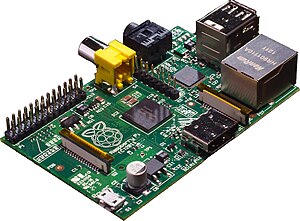
There has been a ton on news in the open source world revolving around the Raspberry Pi. It was one of the first low cost, ARM computers to be targeted at the hobbyist and educational markets. I've owned a Raspberry Pi for many months now and while it does an alright job at playing media files and acting as a small server - for most computing tasks it simply didn't have enough resources available to be useful.

My dedicated x86 media PC I'd been using for some time died a few months back and I had been searching for a low cost replacement for the system - I finally found it in the ARM powered MK802 device.


I've been using the MK802 almost daily for close to a month now and it shocks me that this awesome device hasn't gotten more press in the FOSS world. I plan to write a formal review of the device in the next week, but for now I would like to simply do a comparison between the MK802 and the latest RPI Model B device:


MK802
Raspberry Model B
Processor
1.5ghz
1.0ghz
RAM
1 gig
512 meg
Internal Storage
4 gig
None
USB Ports
One
Two
Networking
Wireless
Wired
Video Out
HDMI Mini
HDMI, RCA
Audio Out
HDMI
HDMI, 3.5m
Storage
Micro SD
SDHC
Size
8.8 x 3.5 x 1.2 cm
8.560 cm × 5.4 cm
Cost+Shipping to US
38.50
43.33

In addition to having superior specs at a lower price point than the RPI Model B, the MK802 also included an HDMI mini to HDMI cord, power adapter, and the device is in a case by default instead of just being a raw board. Needless to say I am impressed with the little device. For those interested in picking up an MK802 I got mine from Amazon here.

~Jeff Hoogland
Read More
Posted in arm, hardware, mk802, raspberry pi | No comments

Tuesday, 30 October 2012

Giving Android a Chance...

Posted on 09:47 by Unknown
It has been about six weeks since I have posted anything - and even longer than that since I posted non-Bodhi related content. I'm currently working through my final semester of graduate school and what little time I have extra has been going towards working on Bodhi things of the late.

Today however, I am bothered enough by something to share my feelings about it. If you have been by my blog here before then you might know that I am not a fan of Google's Android operating system. In fact in the past I have written why I feel it is removed from other Linux operating systems. As of the Linux 3.3 series kernel though a pile of the Android changes where merged back into the main line kernel.

Because of this re-merging and the fact that it had been sometime since I last tried Android in any form I felt I should give it another chance. I know a good amount of people that tout it's virtues and would not use anything else on their mobile devices. The recent death of the computer I'd been using as a media PC for the last three years sent me searching for a new toy. The combination of my wanting to try a recent Android release and the need to replace my media PC lead me to pick up a MK802 Android PC.

I got my little device in the mail today. I ripped open the box, plugged in all the cables and soon had Android booting on my TV! I have three needs from a media PC:
  1. Light Web Browsing
  2. Pandora Internet Radio
  3. Play Media from my External Hard Drive
The MK802 did the first two with ease - the web browser loaded right up and I was soon viewing the Bodhi forums without issues. To take care of my second need, I popped open the Google Play store and installed the Pandora application. 

The issues started when I attempted to play some media files from my external hard drive. I plugged in my drive to the USB port and popped open the file manager - I poked around in all the options but the drive was nowhere to be found. Then I noticed a notification in the lower right corner of the screen, it read:

Damaged USB Storage - You may have to reformat it.

I'd never seen this message on a system powered by a Linux kernel before. I'd seen it a couple of times when friends had tried using my external on their Windows or OSX PCs. My drive is formatted to EXT4 you see. Apparently this file system isn't support on my Android device. That is right, this "Linux" PC doesn't support my Linux file system.

The solution to this issue? I've been told I need to compile a custom kernel module to add ext4 support. If I am going to spend that much effort getting Android to work I would rather devote that effort towards getting Debian to boot on the MK802 instead. So much for Android being easy.

~Jeff Hoogland
Read More
Posted in android, arm, mk802, rant | No comments

Tuesday, 7 August 2012

Bodhi's ARM Branch Moves to ARMHF

Posted on 13:26 by Unknown
After doing some research and testing for the last week I have arrived at the conclusion that Bodhi's ARM branch will best serve our users by moving our core from Debian Wheezy ARMEL to utilize Debian Wheezy ARMHF. I'm not going to get into the technical difference between the two platforms here - just know that in general ARMHF is faster.

With this change however, there are some slight changes to our ARM repo details. If you have Debian Wheezy ARMHF installed on a device and wish to add the Bodhi repo to your sources the line you want to add is:

deb http://packages.bodhilinux.com/bodhi/ debian stable

Then you just install our bodhi-desktop package as before.

With regards to our officially supported ARM devices, you can find download links to our brand new ARMHF images for the RaspBerry Pi and Genesi Smartbook on our ARM downloads page. Our RaspBerry Pi build is built directly on top of Raspbian and incorporates all of their changes and improvements.


~Jeff Hoogland
Read More
Posted in arm, bodhi, debian, genesi, raspberry pi | No comments

Tuesday, 31 July 2012

Bodhi Linux RaspBerry Pi Beta

Posted on 20:34 by Unknown
Edit/Update: You can find the latest release here -> http://www.bodhilinux.com/downloads_mobile.php

A little over six weeks ago I posted a very early image of Bodhi for the RaspBerry Pi. Today I am happy to let everyone know that I have published what I consider to be a "beta" quality image:

Bodhi for Pi: http://bodhilinux.com/downloads_mobile.php

The download comes in the form of a compressed .IMG file, which can be extracted and then written to an SD card (2GB minimum). The first thing worth noting in this release is that the default username/password are different:

Username: pi
Password: bodhilinux

As for changes, this release is now utilizing Terminology as it's default terminal emulator and PCManFM file browser has been replaced with the native EFM (Enlightenment File Manager). The issues our first image had with networking and flash drives should also be resolved with this release. Also worth noting is that the AppCenter is now configured to work by default in the Midori web browser - but the synaptic interface runs fairly slow on the Pi hardware.

Finally - if you have any issues with this image please open a support request in the RaspBerry Pi section of our user forums. That is a much better place to trouble shoot than the comments section on this post.


~Jeff Hoogland
Read More
Posted in arm, bodhi, debian, raspberry pi | No comments

HOWTO: Create and use .IMG files from the CLI

Posted on 14:09 by Unknown
Now that Bodhi's second stable release for the desktop is settling down, I am going to be putting a bit of focus on our ARM releases for the next couple of weeks. ARM images typically are provided in the form of .IMG files. Using a downloaded .IMG file is fairly simple. You can write it to a drive of your choice with a single command:

sudo dd if=myfile.img of=/path/to/drive bs=1M

One thing worth noting though is that /path/to/drive should not include any partition number. An example path would be something like:

/dev/sdb

Note that writing large images can take a good deal of time depending on the speed of your drive and that this command will not give you any feedback until it finishes.

Now, perhaps you are like myself and have some interest in creating/distributing .IMG files of your own. Creating image files is also fairly easily and uses the same dd command. An example of how to create an image file is:

sudo dd if=/path/to/drive of=image.img

Note that this command copies the entire contents of the drive - meaning if your drive is large your .IMG file will be equally large! Now, what do you do if you only want to copy part of your drive? Simply add one argument to the above command of course! For example to only copy the first two gigs of data on a drive to a .IMG file use:

sudo dd if=/path/to/drive of=image.img bs=2048 count=1M

I am by no means an expert at using dd, but if you run into any issues feel free to drop a comment below and I'll do my best to help you out.

Cheers,
~Jeff Hoogland
Read More
Posted in arm, howto, linux | No comments

Tuesday, 12 June 2012

Bodhi Linux ARM Alpha Release for RaspBerry Pi

Posted on 12:07 by Unknown
Edit/Update: You can find the latest release here -> http://www.bodhilinux.com/downloads_mobile.php

I've been busy with lots of different Bodhi things of the late. The latest of my many projects has been getting the Bodhi desktop functional on the RaspBerry Pi:


This first release while having some rough edges does give you a fully functional Enlightenment desktop on top of a Debian Wheezy ARMEL base. I am providing two different downloads which you can find on our source forge page here. The first is an easy to use .img file that can be written to 4GB or larger SD card.

If you dislike .img files I've also provided tar files that contain the boot partition (which should be written to a vfat partition at the start of an SD card) and the root file system (which should be written to the second partition on a card that is extX).

The default logins for this image are:

bodhi/bodhi
root/raspberry

The "bodhi" user has sudo rights by default.

If you hit any snags or find bugs with this image please let us know in the RaspBerryPi section of our user forums (not the comment section of this blog!) so we can improve this release.


~Jeff Hoogland

Read More
Posted in arm, bodhi, debian, raspberry pi | No comments

Monday, 11 June 2012

Bodhi Linux ARM Release Candidate for Genesi

Posted on 14:16 by Unknown
Edit/Update: You can find the latest release here -> http://www.bodhilinux.com/downloads_mobile.php

Early this year I posted about our beta release of Bodhi on ARM for the Genesi Smartbook. Today I would like to finally follow up that beta release with something that I consider "release candidate" quality. The hardware is 99% functional with this release including the ability to suspend the system. Other small improvements include functional "plug and play" for flash drives and a mostly functional AppCenter!

There are three different downloads provided that you can find here. It is recommended you use one of the provided .img files (and check the md5sum after such a large download!). For developers interested in seeing the raw file system you can also download it in .tar.xz form.

The default login information for this release image are:

genesi/bodhilinux

If you run into any issues please let us know in the Genesi section of our forums.

~Jeff Hoogland
Read More
Posted in arm, bodhi, debian, genesi | No comments

Tuesday, 17 January 2012

Bodhi Linux ARM Beta Release for Genesi Smartbook

Posted on 21:36 by Unknown
Edit/Update: You can find the latest release here -> http://www.bodhilinux.com/downloads_mobile.php

Much to my fiancée's dismay my little Genesi Smartbook has been occupying much of my time of the late. In fact, just six days ago I posted about how to get an early build of a Bodhi ARM file system for the Smartbook.

Today I am happy to announce a more functional release for the Genesi. Audio now works and permissions have been sorted out so the normal user can shutdown the system. Beyond these bug fixes this release (and future releases) are coming in an easier install media. We will now be providing two different .img files for the Smartbook, you can find them for download here.

One of the images is a live image. Use this one if you want to simply run Bodhi from your SD card. The second is an installer image. Simply boot it up, follow the on screen prompts and Bodhi will be installed to the internal SSD of the Smartbook. IMG files allow for simply loading these images onto an SD card with a single command:

sudo dd if=myfile.img of=/path/to/sdcard bs=1M

You can also load the image onto your card via a GUI if you are into that sort of thing. Please note this command may take five minutes or longer to complete. Once you get the system online the user name is "bodhi" with password of "bodhi". Sudo is setup for this user by default.

Next on my ARM todo list is to get our App Center working and putting together a formal tutorial for getting Bodhi running on the HP Touchpad.

Finally, if you run into any issues please let us know in the Genesi section of our forums.

~Jeff Hoogland
Read More
Posted in arm, bodhi, debian, genesi | No comments

Monday, 16 January 2012

People in Closed Source Houses Shouldn't Throw Stones

Posted on 11:19 by Unknown
I wrote a post late last year when all the news first started being posted (pretty much everywhere) about the Windows 8 "secure boot" support. Well folks, the open source news media is at it again - Microsoft has announced they are doing exactly what we thought they would - they are implementing secure boot on Windows 8 ARM devices. There have been various blogs and even decent open source websites posting foolish notions such as:

Microsoft ready to war with Linux

or

Did Microsoft Just Kill Ubuntu Tablets?

I say these notions are foolish because they imply that Microsoft is doing something that isn't already being done.

Do these people have any idea how many Linux based ARM devices don't allow dual booting? Do they have any idea how many Linux based ARM devices exist, were even if you can dual boot them they lack hardware functionality in alternative operating systems due to closed source drivers?

Before you tar and feather me for not jumping on the Microsoft bashing bandwagon - please stop and count the number of ARM devices you've tried to install an alternative operating system (such as Debian) on. Personally, the number of different pieces of hardware I've worked with is into the double digits now. Do you know how many devices I've managed to get full functionality out of?  

Exactly one. 

Thats right, until I'd recently started working with the Genesi Smartbook alternative operating systems were always crippled on the various ARM devices I owned. If you can prove me wrong here - really, please do! I would love to have more ARM devices that I can run Linux on fully.

So maybe, just maybe, the open source news media needs to stop and take a deep breath and realise that the ARM platform as a whole is a giant mess with regards to software freedom. Microsoft isn't doing anything new here - they are simply following in the footsteps of companies everywhere of creating locked down mobile devices. So please, if you are going to continue calling out Microsoft as the ARM anti-christ please be sure to include all those other companies involved with ARM that also hate software freedom.

~Jeff Hoogland
Read More
Posted in arm, linux, rant, windows | No comments
Older Posts Home
Subscribe to: Posts (Atom)

Popular Posts

  • HOWTO: Test E18, EFL 1.8.0, and Terminology 0.4.0 on Bodhi Linux
    As of this past weekend the testing builds of the Enlightenment window manager DR18 (E18 for short) are in the Bodhi Linux testing repositor...
  • Blackboard - No Linux for Online Education
    In addition to being a Linux Advocate and working 40+ hours a week I am also a full time student. Due to schedule constraints I often take ...
  • My Beef with the iPad
    Now I've written a couple of pieces about the iPad thus far and if you read through them you will see that the device has failed to imp...
  • HOWTO: Watch Netflix on Bodhi Linux
    Not being able to utilize the Netflix video streaming service has been an issue on the Linux desktop for the past few years. This is due to...
  • On the Topics of Software, Average Users and User Friendliness
    The term "average user" is something you hear thrown around a lot with regards to software. Pro-Linux, on the desktop, people ofte...
  • Steam Client and Source Games Porting to OSX
    So the devil called me this afternoon and said they where having a snowstorm in hell. In other news Valve announced that their revolutionar...
  • HOWTO: Starcraft 2 on Linux with Wine
    Okie dokie - so I've mentioned before that I play Starcraft 2 under my Linux install with no issues. Since the game's official rel...
  • Cedega vs Crossover Games - Hands on Review
    Most people who use Linux for desktop use are well aware of the one of the largest issues facing the platform: Lack of commercial software. ...
  • Clarifying details about E17 and Compositing
    I just wanted to take a moment to clarify the state of compositing with the Enlightenment desktop. In two recent reviews of Bodhi Linux ...
  • Macbook Comparison
    I work at the Beverly Arts Center, in Chicago. I have found that many arts people prefer Apple laptops to any other brand. Why is this? The ...

Categories

  • 3g modem
  • adobe
  • android
  • appeal
  • apple
  • arm
  • art
  • asus tablet
  • benchmark
  • bodhi
  • bordeaux
  • cedega
  • chakra
  • chrome os
  • chromebook
  • cockatrice
  • codeweavers
  • comic
  • cricket wireless
  • crysis
  • cxgames
  • debian
  • dell duo
  • diablo3
  • distro review
  • dtf
  • e18
  • eandora
  • eccess
  • elementary
  • elive
  • enlightenment
  • fedora
  • firefox
  • gaming
  • genesi
  • gnome
  • google
  • google chrome
  • google wave
  • handheld device
  • hardware
  • helios
  • howto
  • html5
  • ideapad
  • interview
  • ipad
  • jolicloud
  • kde
  • l4d2
  • laptops
  • lenovo
  • linux
  • lxde
  • macbook
  • math
  • maxima
  • media
  • meego
  • milestone
  • mint
  • mir
  • mk802
  • moblin
  • n900
  • netflix
  • nexus 7
  • nvidia
  • open pandora
  • open source
  • opengl
  • opera
  • operating systems
  • palm
  • phones
  • promotion
  • python
  • qt
  • rant
  • raspberry pi
  • reviews
  • sabayon
  • software
  • source games
  • spotlight
  • sprint
  • starcraft2
  • steam
  • t-mobile
  • tutorial
  • ubuntu
  • unigine
  • unity
  • wayland
  • web application
  • windows
  • windows 7
  • wine
  • wxmaxima
  • xfce

Blog Archive

  • ▼  2013 (20)
    • ▼  December (1)
      • HOWTO: Watch Netflix on Bodhi Linux
    • ►  November (1)
    • ►  September (1)
    • ►  June (1)
    • ►  May (2)
    • ►  March (2)
    • ►  February (3)
    • ►  January (9)
  • ►  2012 (57)
    • ►  December (5)
    • ►  November (4)
    • ►  October (2)
    • ►  September (1)
    • ►  August (4)
    • ►  July (9)
    • ►  June (4)
    • ►  May (4)
    • ►  April (1)
    • ►  March (7)
    • ►  February (6)
    • ►  January (10)
  • ►  2011 (107)
    • ►  December (8)
    • ►  November (8)
    • ►  October (5)
    • ►  September (14)
    • ►  August (9)
    • ►  July (8)
    • ►  June (7)
    • ►  May (10)
    • ►  April (9)
    • ►  March (13)
    • ►  February (9)
    • ►  January (7)
  • ►  2010 (122)
    • ►  December (10)
    • ►  November (8)
    • ►  October (10)
    • ►  September (14)
    • ►  August (17)
    • ►  July (10)
    • ►  June (9)
    • ►  May (14)
    • ►  April (8)
    • ►  March (7)
    • ►  February (7)
    • ►  January (8)
  • ►  2009 (27)
    • ►  December (10)
    • ►  November (7)
    • ►  October (10)
Powered by Blogger.

About Me

Unknown
View my complete profile